Visual Search Task
In this task, participants search for a target stimulus among distractor stimuli arranged in a circular display. The task follows a classic visual search paradigm: a prime (cue) is presented first, followed by a search array where the participant must locate and identify the target using keyboard responses. Reaction times and accuracy are recorded.
The visual search paradigm is fundamental to attention research, measuring how efficiently participants can detect targets among distractors1. Feature Integration Theory demonstrated that some visual features "pop out" automatically (parallel search), while others—particularly conjunctions of features—require serial, effortful search1. The task also supports semantic priming designs, where text or image cues precede the search array.
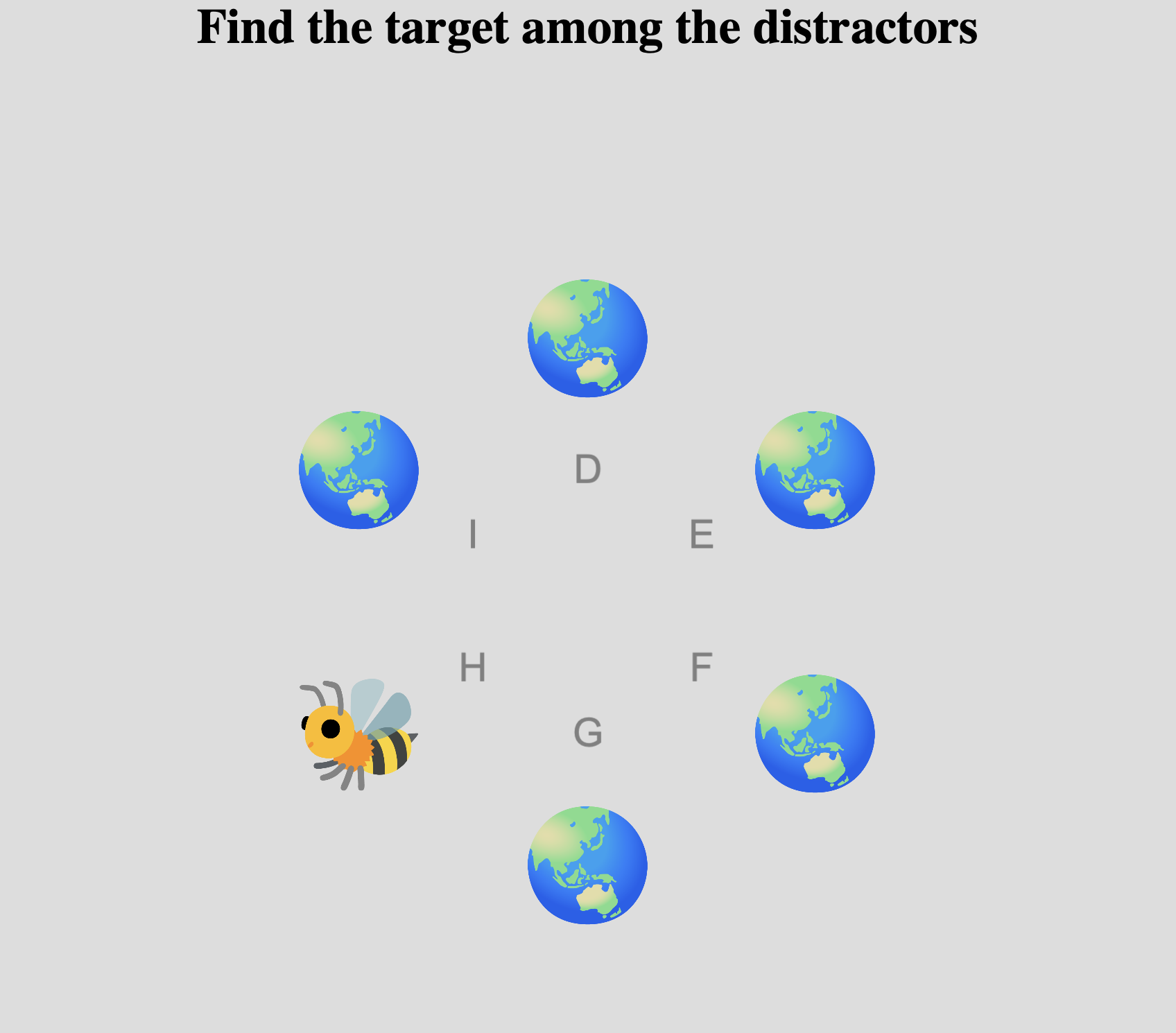
Example Visual Search array on Meadows with a target stimulus (bee) among distractors (globes) arranged in a circular display.
Quick Start
- Create or open an experiment from your Dashboard
- Click Add task and select "Visual Search"
- Select a stimulus set with target and distractor stimuli, as well as prime stimuli if you are using primes
- Configure response keys and preview your experiment
New to Meadows? See the Getting Started guide for a complete walkthrough.
Alternative tasks
- Use a Timed Key Response task for simpler reaction time measurements without the circular search array.
- Use a Circular Matching task for matching stimuli to a central reference without time pressure.
- Use a Cued Imagery, another visual imagery cued by a text stimulus.
Parameters
Customize the task by changing these on the Parameters tab of the task.
General Interface settings
Customize the instruction at the top of the page, as well as toolbar buttons. These apply to most task types on Meadows.
Instruction hint-
Text that you can display during the task at the top of the page.
Extended instruction-
A longer instruction that only appears if the participant hovers their mouse cursor over the hint.
Hint size-
Whether to display the instruction, or hide it, and what font size to use.
Fullscreen button-
Whether to display a button in the bottom toolbar that participants can use to switch fullscreen mode on and off.
Prime Configuration
Configure how the cue/prime stimulus is presented before the search array.
Prime Type-
What kind of stimuli to present as the prime. Options:
txt,png,jpg,ogv,mp4. Default:txt. Text Prime Variant-
If using text stimuli as prime, whether to use the short or long version of the stimulus. Options:
short,long. Default:short. Text Prime Size-
If a text prime is used, this is the font size as a percentage of the available width. Default: 1.0. Valid range: 0.2 to 10.0.
Text Prime Display Mode-
Display a text prime in one go, or each word serially. Options:
As a whole: Display the entire text at onceOne word after another: Display words sequentially
Default:
As a whole. Prime Duration-
How long the prime should be displayed in milliseconds. Default: 1000 ms. Valid range: 1 to 10,000 ms.
Search Configuration
Configure the search array and target/distractor presentation.
Search Type-
What kind of stimuli to present in the search array. Options:
txt,png,jpg,ogv,mp4. Default:png. Number Of Distractors-
How many times to display the distractor stimulus in the search array. The total number of items in the array will be this value plus one (the target). Default: 5. Valid range: 0 to 8.
First Item Offset-
Offset from the middle line for the first item, as a fraction of the angle between two items. This allows you to adjust the starting position of stimuli around the circle. Default: 0. Valid range: 0 to 1.
Response Configuration
Configure keyboard responses and feedback.
Response Keys-
Which keyboard keys match the images, clockwise starting from 12 o'clock. The number of keys should match the number of items in the search array.
Display Response Keys-
Show a key label next to each stimulus to help participants identify which key corresponds to each location. Default: checked.
Maximum Reaction Time-
Amount of time the participant has to respond before the trial is considered timed out, in milliseconds. Default: 100,000 ms. Valid range: 1 to 100,000 ms.
Display Feedback-
After the participant responds, a screen will display either "correct" or "wrong". Default: unchecked.
Display RT-
After the participant responds, display the reaction time (e.g., "244ms"). Default: unchecked.
Feedback Duration-
How long the feedback should be displayed in milliseconds. Default: 3000 ms. Valid range: 1 to 60,000 ms.
Timing
Control the temporal structure of trials.
Fixation Duration-
Duration of the fixation cross between the prime and the search array, in milliseconds. Default: 500 ms. Valid range: 1 to 10,000 ms.
Inter Trial Duration-
Time between trials in milliseconds. Default: 500 ms. Valid range: 1 to 10,000 ms.
Inter Trial Jitter Max-
A random amount of time will be added on top of the ITI, between 0 ms and the value chosen here. Useful for preventing anticipatory responses. Default: 0 ms. Valid range: 0 to 10,000 ms.
Trial Generation
Control how trials are generated from your stimulus set.
Trial Order-
How to select trial stimuli. Options:
random: Generate random combinations of prime-target-distractorhardcoded: Use a predefined trial list
Default:
random. Number Of Trials-
Only applies in random mode. Unique combinations of stimuli will be either removed or repeated to reach this number. Default: 50. Valid range: 1 to 10,000.
Repeat Failed Trials-
If the trial timed out, or the response was incorrect, it will be repeated after the last trial. This ignores the "number of trials" setting. Default: unchecked.
Breaks
Configure rest breaks during the task.
Trials Between Breaks-
A break will be shown and data stored every time the participant has finished this many trials. Default: 5000. Valid range: 1 to 5,000.
Break Text-
This text will be shown during a break. Default: "You've just finished one block.\nTake a break, and press continue when ready."
Catch Trials
Configure optional catch trials to verify participant attention to the prime.
Catch Trial Fraction-
What proportion of trials should be followed by a question about the prime. Set to 0 to disable catch trials. Default: 0.0. Valid range: 0 to 1.
Catch Text-
The text shown during the catch prompt. Default: "Does this image match the sentence? (y/n)".
Catch Response Keys-
Valid keyboard keys for the response to the catch question. If feedback is used, these are assumed to correspond to [match] and [not a match], in that order.
Display Catch Feedback-
After the participant responds to a catch trial, display whether the response was correct or wrong. Default: unchecked.
Data
For general information about the various structures and file formats that you can download for your data see Downloads.
Trial-wise "annotations" (table rows), with one row per trial. Columns:
trial- numerical index of the trialtime_trial_start- timestamp when the search array was displayed (seconds since 1/1/1970)time_trial_response- timestamp when the participant responded (seconds since 1/1/1970)stim1_id- meadows internal id of the prime stimulusstim1_name- filename of the prime stimulus as uploadedstim2_id- meadows internal id of the target stimulusstim2_name- filename of the target stimulus as uploadedstim3_id- meadows internal id of the distractor stimulusstim3_name- filename of the distractor stimulus as uploadedlabel- the response in formatkey_targetLocation(e.g.,j_2), ortimedoutif no response
Analysis
Calculate Reaction Times and Accuracy
Reaction time (RT) is calculated as the difference between time_trial_response and time_trial_start. Accuracy is determined by comparing the response key to the target location.
import pandas as pd
import matplotlib.pyplot as plt

# Load the annotations data
df = pd.read_csv('Meadows_myExperiment_v1_annotations.csv')

# Calculate reaction time in milliseconds
df['rt_ms'] = (df['time_trial_response'] - df['time_trial_start']) * 1000

# Parse the label to extract key pressed and target location
df[['key_pressed', 'target_location']] = df['label'].str.split('_', expand=True)
df['target_location'] = pd.to_numeric(df['target_location'], errors='coerce')

# Filter out timed-out trials
df_valid = df[df['label'] != 'timedout'].copy()

# Basic statistics
print(f"Mean RT: {df_valid['rt_ms'].mean():.2f} ms")
print(f"Median RT: {df_valid['rt_ms'].median():.2f} ms")
print(f"Response rate: {len(df_valid) / len(df) * 100:.1f}%")

# Plot RT distribution
plt.figure(figsize=(10, 6))
plt.hist(df_valid['rt_ms'], bins=50, edgecolor='black')
plt.xlabel('Reaction Time (ms)')
plt.ylabel('Frequency')
plt.title('Visual Search Reaction Time Distribution')
plt.show()
library(tidyverse)

# Load the annotations data
df <- read_csv('Meadows_myExperiment_v1_annotations.csv')

# Calculate reaction time and parse label
df <- df %>%
  mutate(
    rt_ms = (time_trial_response - time_trial_start) * 1000
  ) %>%
  filter(label != 'timedout') %>%
  separate(label, into = c('key_pressed', 'target_location'),
           sep = '_', remove = FALSE) %>%
  mutate(target_location = as.numeric(target_location))

# Basic statistics
df %>%
  summarise(
    mean_rt = mean(rt_ms),
    median_rt = median(rt_ms),
    sd_rt = sd(rt_ms),
    n_trials = n()
  )

# Plot RT distribution
ggplot(df, aes(x = rt_ms)) +
  geom_histogram(bins = 50, fill = 'steelblue', color = 'black') +
  labs(x = 'Reaction Time (ms)', y = 'Frequency',
       title = 'Visual Search Reaction Time Distribution') +
  theme_minimal()
References
-
Treisman, A. M., & Gelade, G. (1980). A feature-integration theory of attention. Cognitive Psychology, 12(1), 97-136. doi:10.1016/0010-0285(80)90005-5 ↩↩