Order Sort Task
In each trial, multiple stimuli are displayed, and the participant can drag & drop them to place them in a certain order. Optionally, the first item in the trial can be displayed as a reference.
This task is useful for collecting ordinal or ranking data, where participants judge stimuli relative to each other on a given dimension (e.g., pleasantness, size, similarity to a reference, or the order in which events occur).
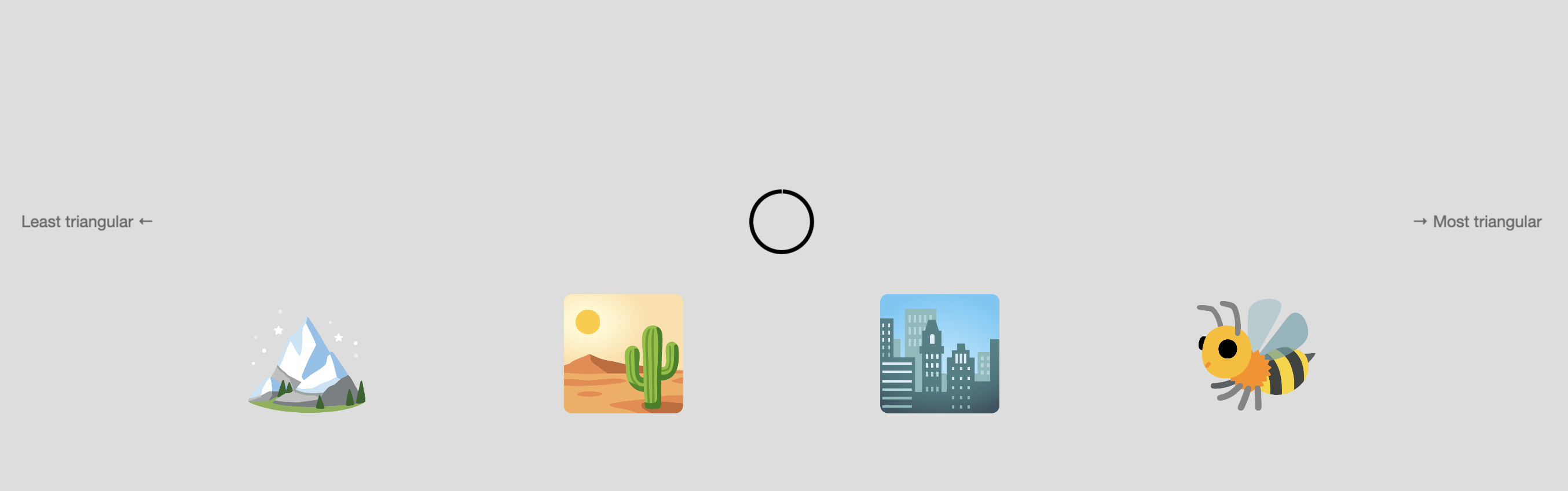
Example Order Sort task with four images to be arranged. Here the sorting dimension is triangularity. A circle is displayed in the centre indicating the remaining time"
Below you'll find information specific to the Order Sort task. This assumes you're familiar with how to setup an experiment and how to select stimuli for a given task.
Parameters
Customize the task by changing these on the Parameters tab of the task.
General Interface settings
Customize the instruction at the top of the page, as well as toolbar buttons.
Instruction hint-
Text displayed during the task at the top of the page.
Extended instruction-
A longer instruction that only appears if the participant hovers their mouse cursor over the hint.
Hint size-
Whether to display the instruction, or hide it, and what font size to use.
Fullscreen button-
Whether to display a button in the bottom toolbar that participants can use to switch fullscreen mode on and off.
Trials and stimuli
Number of stimuli to sort-
How many stimuli are displayed per trial for the participant to arrange. Default: 3. Must be between 2 and 10.
Display reference stimulus-
When enabled, the first stimulus in every trial will be displayed at the top of the screen instead of as part of the series to be sorted. This is useful when participants should order stimuli based on their similarity or relation to a reference item.
Scale labels
Left side label-
The label displayed to the left of the stimuli to be sorted. Default: "Minimum ←". Max 30 characters.
Right side label-
The label displayed to the right of the stimuli to be sorted. Default: "→ Maximum". Max 30 characters.
Timing
Time limit-
How much time the participant has to sort one trial, in seconds. Default: 300 seconds. Must be between 0 and 1200.
Trial submit cooldown-
The participant can only confirm the trial after this many milliseconds have passed. Prevents accidental double-click. Default: 500 ms. Must be between 0 and 3000.
Button labels
Next button label-
The label on the toolbar button to go to the next trial. Default: "Next". Max 20 characters.
Finish button label-
The label on the toolbar button to end the task. Default: "Finish". Max 20 characters.
Data
For general information about the various structures and file formats that you can download for your data see Downloads.
As trial-wise "annotations" (table rows), with columns:
trialnumerical index of the trialtime_trial_starttimestamp when the trial was displayedtime_trial_responsetimestamp when the participant confirmed their arrangementstim1_id,stim2_id, ... meadows internal ids of the stimuli in the trialstim1_name,stim2_name, ... filenames of the stimuli as uploadedlabelthe response data in format{moves}_{order}, where:movesis the number of drag operations the participant madeorderis the final arrangement as stimulus names joined by hyphens (e.g.,3_stim2-stim1-stim3)
In the Tree structure:
annotationsAn array with a key/value map for each trial:startTimestamp (epoch time) of the start of the trialrespTimestamp (epoch time) when the participant confirmed their responseidsArray of stimulus IDs in the triallabelResponse data in format{moves}_{order}
Analysis and Visualization
Extract rankings from annotations
from pandas import read_csv

# Load annotations data
df = read_csv('Meadows_myExperiment_v1_annotations.csv')

# Parse the label column to extract move count and order
def parse_label(label):
    parts = label.split('_', 1)
    moves = int(parts[0])
    order = parts[1].split('-') if len(parts) > 1 else []
    return moves, order

df['moves'], df['order'] = zip(*df['label'].apply(parse_label))

# Show the rankings
print(df[['trial', 'moves', 'order']])
library(tidyverse)

# Load annotations data
df <- read_csv('Meadows_myExperiment_v1_annotations.csv')

# Parse the label column
df <- df %>%
  separate(label, into = c("moves", "order"), sep = "_", extra = "merge") %>%
  mutate(moves = as.integer(moves))

# Show the rankings
print(df %>% select(trial, moves, order))
% Load annotations data
data = readtable('Meadows_myExperiment_v1_annotations.csv');

% Parse the label column to extract move count and order
labels = data.label;
moves = zeros(height(data), 1);
orders = cell(height(data), 1);

for i = 1:height(data)
    parts = split(labels{i}, '_');
    moves(i) = str2double(parts{1});
    if length(parts) > 1
        orders{i} = split(parts{2}, '-');
    end
end

% Add to table and display
data.moves = moves;
data.order = orders;
disp(data(:, {'trial', 'moves', 'order'}));
In Google Sheets or Microsoft Excel, you can parse the ranking data from the label column:
- Load Data: Import the
Meadows_myExperiment_v1_annotations.csvfile. - Extract move count: Use a formula to get the number before the underscore:
(assuming
labelis in column F) - Extract order: Use a formula to get the text after the underscore:
- Split order into columns: Use
Data > Split text to columnswith-as delimiter, or: (drag across columns to get each stimulus in the ranking)